

 Account
 Billing
Select conversations for batch export
Open the Memories list in the popup or side panel, choose Select, tick the conversations you want, then use the Export menu to save them together as separate Markdown files, one merged Markdown document, Obsidian, Notion, or Google Docs.
Browse docsMenu
 Browse docs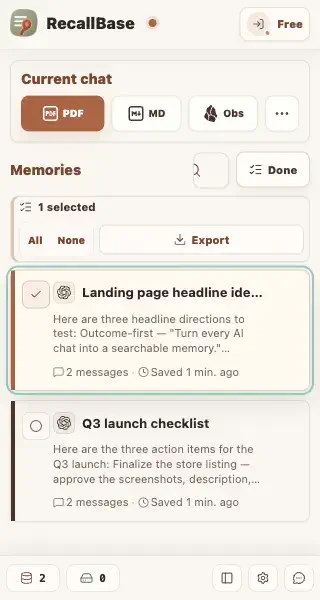
Where Select mode lives
Select mode is built into the Memories list — the saved conversations you captured earlier. You will find the Select button on the right of the Memories search row, both in the browser-action popup and in the Chrome or Edge side panel. The two surfaces share the same interface, so the steps below work identically in each. The button stays disabled when there is nothing to select.
Select the conversations you need
- 1
Open the RecallBase popup or side panel and find the Memories list.
- 2
Optionally search or filter first — Select mode works on the conversations currently matching your search and filters.
- 3
Choose Select. The button turns into Done and every conversation card grows a round checkbox.
- 4
Click conversation cards to tick or untick them, or use All and None in the summary bar to select everything that matches the current filter at once.
The summary bar shows how many conversations are selected. Choosing All selects every conversation in the current filtered result set, not only the ones visible on screen.
Export the selection
With at least one conversation selected, open the Export menu in the summary bar. Batch export offers five destinations: separate Markdown files (one file per conversation), a single merged Markdown document, a merged Obsidian note, a merged Notion page, or a merged Google Doc through Export Studio.
Choosing Done (or leaving Select mode) clears the selection, so export before you exit.
What Select mode cannot do
Select mode only exports. There is no batch delete, no batch merge inside Memories, and no batch PDF or image export — PDF and image stay per-conversation exports from the detail page or Export Studio. Without Select mode, the same Export menu acts on the full current result set instead of a hand-picked selection.
Batch export follows the same Free and Pro format limits as single-chat export — see the capability table.
Export entry point table
Use this table to see where each browser extension export action appears.
| Action | Popup | Floating button | Right-click menu | Export Studio |
|---|---|---|---|---|
| Open Export Studio | Yes | Yes | Yes | Already there |
| Markdown download | Yes | Yes | Yes | Yes |
| Copy Markdown | Yes | Open Studio first | Yes | Yes |
| Yes | Yes | Yes | Yes | |
| Word / DOCX | Yes | Yes | Yes | Yes |
| Image / PNG | Yes | Open Studio first | Yes | Yes |
| Copy Image | Yes | Open Studio first | Yes | Yes |
| Text | Yes | Open Studio first | Yes | Yes |
| JSON | No | No | Yes | No |
| Copy JSON | No | No | Yes | No |
| Obsidian | Yes | Yes | Yes | Yes |
| Notion | Yes | Yes | Yes | Yes |
| Settings | Yes | No | Yes | No |
Free and Pro export capability table
The same limits apply across export docs, pricing, and the browser extension.
| Export target | Free | Pro | Notes |
|---|---|---|---|
| Markdown | Unlimited | Unlimited | No Pro required |
| 3 / local day + watermark | Unlimited + no watermark | The browser controls the final PDF save dialog | |
| Word | 3 / local day | Unlimited | Rich export runs locally |
| Text | Unlimited | Unlimited | Plain local text export |
| Image | Watermarked | No watermark | Size preflight may block very large captures |
| JSON | Unlimited | Unlimited | Use for local developer workflows |
| Notion | 3 / local day | Unlimited | Requires the current authorized Notion workflow |
| Google Docs | 3 / local day | Unlimited | Requires the current authorized Google Docs workflow |
| Obsidian | Unlimited | Unlimited | The browser cannot prove final note creation |

