

 Account
 Billing
Export from anywhere
RecallBase has four browser export entry points. Use the popup when you are new, the floating button for the current chat, right-click for page-level shortcuts, and Export Studio when you want to preview or choose messages.
Browse docsMenu
 Browse docs


Quick choice
If you are not sure, open the RecallBase popup first. It shows whether the current page is supported and which export actions are available.
- 1
Need the easiest path? Use the popup.
- 2
Already reading the chat? Use the floating button.
- 3
Need JSON or browser menu shortcuts? Use right-click.
- 4
Want to check or select messages first? Use Export Studio.
- 5
Exporting several saved chats at once? Use Select mode in the Memories list.
Popup
Click the RecallBase extension icon in the browser toolbar. The popup can prepare the current chat, show saved chats, export a saved chat from its card menu, and open Export Studio.
- 1
Open a supported AI conversation.
- 2
Click the RecallBase icon in the toolbar.
- 3
For the current chat, choose Studio, PDF, Markdown, Word, Image, Text, Copy Markdown, Copy Image, Obsidian, or Notion.
- 4
For a saved chat detail view, use Studio, Copy contents, MD, Word, PDF, Obsidian, or Notion. Open Studio for Image, Text, Copy Markdown, or Copy Image.
Floating button
On supported conversation pages, RecallBase shows a small floating button. Use it for quick current-chat actions without opening the popup.
- 1
Open the supported AI chat.
- 2
Click the RecallBase floating button.
- 3
Choose Studio, Markdown, Word, PDF, Obsidian, or Notion.
- 4
For Image, Text, Copy Markdown, or Copy Image, open Export Studio. For JSON, use the right-click menu.
Right-click menu
The browser right-click menu gives page-level shortcuts for exporting the current chat.
- 1
Right-click on a supported AI conversation page.
- 2
Open the RecallBase menu item.
- 3
Choose Export Studio, PDF, Word, Text, Markdown, Image, JSON, Copy Markdown, Copy Image, Copy JSON, Obsidian, Notion, or settings.
- 4
If the page is not a real conversation, the action may fail or show an unsupported-page message after you click it.
Export Studio
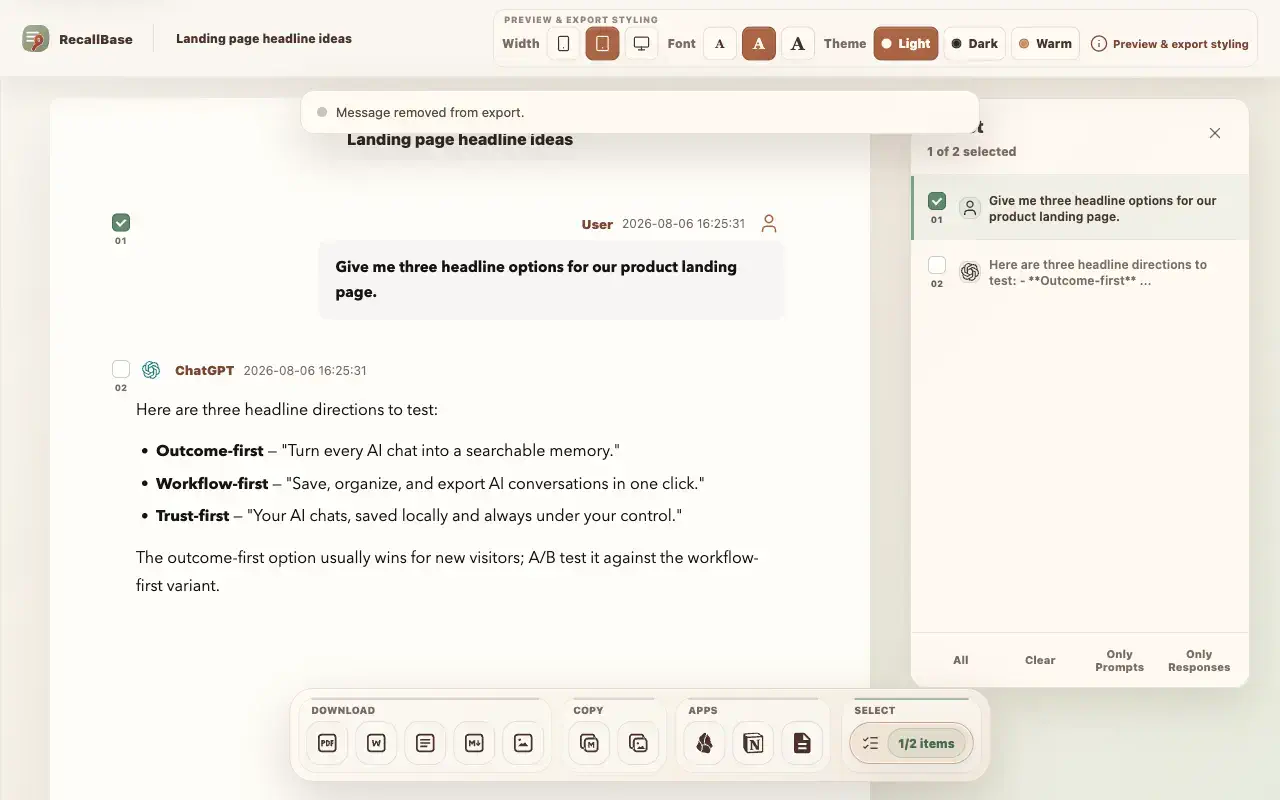
Export Studio is the place to slow down and check the output. Use it when you want a preview, message selection, layout controls, or image copy. JSON is the exception: use the right-click menu for JSON.
- 1
Open Studio from the popup, floating button, or right-click menu.
- 2
Review the captured messages.
- 3
Adjust selection, theme, width, or text size when needed.
- 4
Choose the final action: download, copy, Obsidian, or Notion.
Format limits
The same Free and Pro limits apply no matter which entry point you use. See the capability table below for the current limits.
Export entry point table
Use this table to see where each browser extension export action appears.
| Action | Popup | Floating button | Right-click menu | Export Studio |
|---|---|---|---|---|
| Open Export Studio | Yes | Yes | Yes | Already there |
| Markdown download | Yes | Yes | Yes | Yes |
| Copy Markdown | Yes | Open Studio first | Yes | Yes |
| Yes | Yes | Yes | Yes | |
| Word / DOCX | Yes | Yes | Yes | Yes |
| Image / PNG | Yes | Open Studio first | Yes | Yes |
| Copy Image | Yes | Open Studio first | Yes | Yes |
| Text | Yes | Open Studio first | Yes | Yes |
| JSON | No | No | Yes | No |
| Copy JSON | No | No | Yes | No |
| Obsidian | Yes | Yes | Yes | Yes |
| Notion | Yes | Yes | Yes | Yes |
| Settings | Yes | No | Yes | No |
Free and Pro export capability table
The same limits apply across export docs, pricing, and the browser extension.
| Export target | Free | Pro | Notes |
|---|---|---|---|
| Markdown | Unlimited | Unlimited | No Pro required |
| 3 / local day + watermark | Unlimited + no watermark | The browser controls the final PDF save dialog | |
| Word | 3 / local day | Unlimited | Rich export runs locally |
| Text | Unlimited | Unlimited | Plain local text export |
| Image | Watermarked | No watermark | Size preflight may block very large captures |
| JSON | Unlimited | Unlimited | Use for local developer workflows |
| Notion | 3 / local day | Unlimited | Requires the current authorized Notion workflow |
| Google Docs | 3 / local day | Unlimited | Requires the current authorized Google Docs workflow |
| Obsidian | Unlimited | Unlimited | The browser cannot prove final note creation |

