

 Account
 Billing
Select which messages to export
Open a conversation in Export Studio and use the Select group in the dock. Every message starts selected; untick the ones you want to leave out, or use All, Clear, Only Prompts, and Only Responses. The selection applies to every Studio export format.
Browse docsMenu
 Browse docs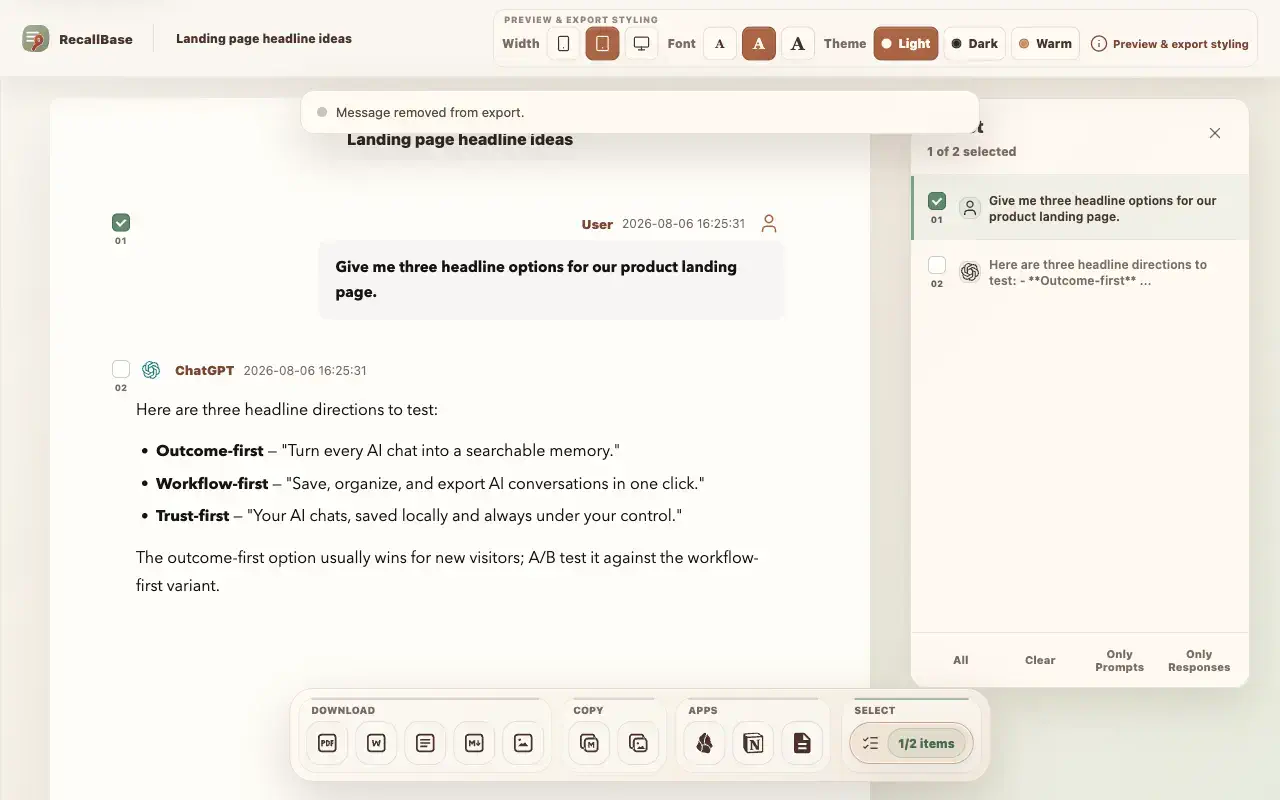
Where message selection lives
Message selection is part of Export Studio. Open any conversation in Studio — from the popup, the floating button, the right-click menu, or a saved chat — and look at the Select group in the bottom dock. Its badge shows a count such as 1/2 items: how many messages are currently included out of the total. Every message starts selected, so if you want the whole conversation you do not need to change anything.
Choose the messages to keep
- 1
Click the Select button in the dock to open the selection panel.
- 2
Tick or untick messages in the panel — or directly on each message in the preview while the panel is open.
- 3
Use the shortcuts at the bottom: All, Clear, Only Prompts, or Only Responses.
- 4
Use a row's locate action to scroll the preview to that message when you lose track of it.
Only Prompts and Only Responses are the fast paths for the two most common shapes: keeping just your own questions, or keeping just the AI’s answers.
Export exactly the selection
The selection applies to every format Studio can produce — Markdown, Word, PDF, text, image, Obsidian, Notion, Google Docs, and clipboard copies. Two details worth knowing:
- At least one message must stay selected. With an empty selection, every export button is disabled and Studio asks you to select a message first.
- A partial selection adds a selected-N suffix to the export file name, so a trimmed export never overwrites or masquerades as the full conversation.
Message selection decides what goes into the file; preview and styling decides how it looks. Free and Pro format limits are unchanged by selection — see the capability table.
Export entry point table
Use this table to see where each browser extension export action appears.
| Action | Popup | Floating button | Right-click menu | Export Studio |
|---|---|---|---|---|
| Open Export Studio | Yes | Yes | Yes | Already there |
| Markdown download | Yes | Yes | Yes | Yes |
| Copy Markdown | Yes | Open Studio first | Yes | Yes |
| Yes | Yes | Yes | Yes | |
| Word / DOCX | Yes | Yes | Yes | Yes |
| Image / PNG | Yes | Open Studio first | Yes | Yes |
| Copy Image | Yes | Open Studio first | Yes | Yes |
| Text | Yes | Open Studio first | Yes | Yes |
| JSON | No | No | Yes | No |
| Copy JSON | No | No | Yes | No |
| Obsidian | Yes | Yes | Yes | Yes |
| Notion | Yes | Yes | Yes | Yes |
| Settings | Yes | No | Yes | No |
Free and Pro export capability table
The same limits apply across export docs, pricing, and the browser extension.
| Export target | Free | Pro | Notes |
|---|---|---|---|
| Markdown | Unlimited | Unlimited | No Pro required |
| 3 / local day + watermark | Unlimited + no watermark | The browser controls the final PDF save dialog | |
| Word | 3 / local day | Unlimited | Rich export runs locally |
| Text | Unlimited | Unlimited | Plain local text export |
| Image | Watermarked | No watermark | Size preflight may block very large captures |
| JSON | Unlimited | Unlimited | Use for local developer workflows |
| Notion | 3 / local day | Unlimited | Requires the current authorized Notion workflow |
| Google Docs | 3 / local day | Unlimited | Requires the current authorized Google Docs workflow |
| Obsidian | Unlimited | Unlimited | The browser cannot prove final note creation |

