

 Account
 Billing
Preview and style PDF & image exports
Export Studio shows a live preview of the conversation before you export. Image exports render exactly what the preview shows; PDF exports apply your font and theme, then finish in the browser's print dialog, which has its own page preview.
Browse docsMenu
 Browse docs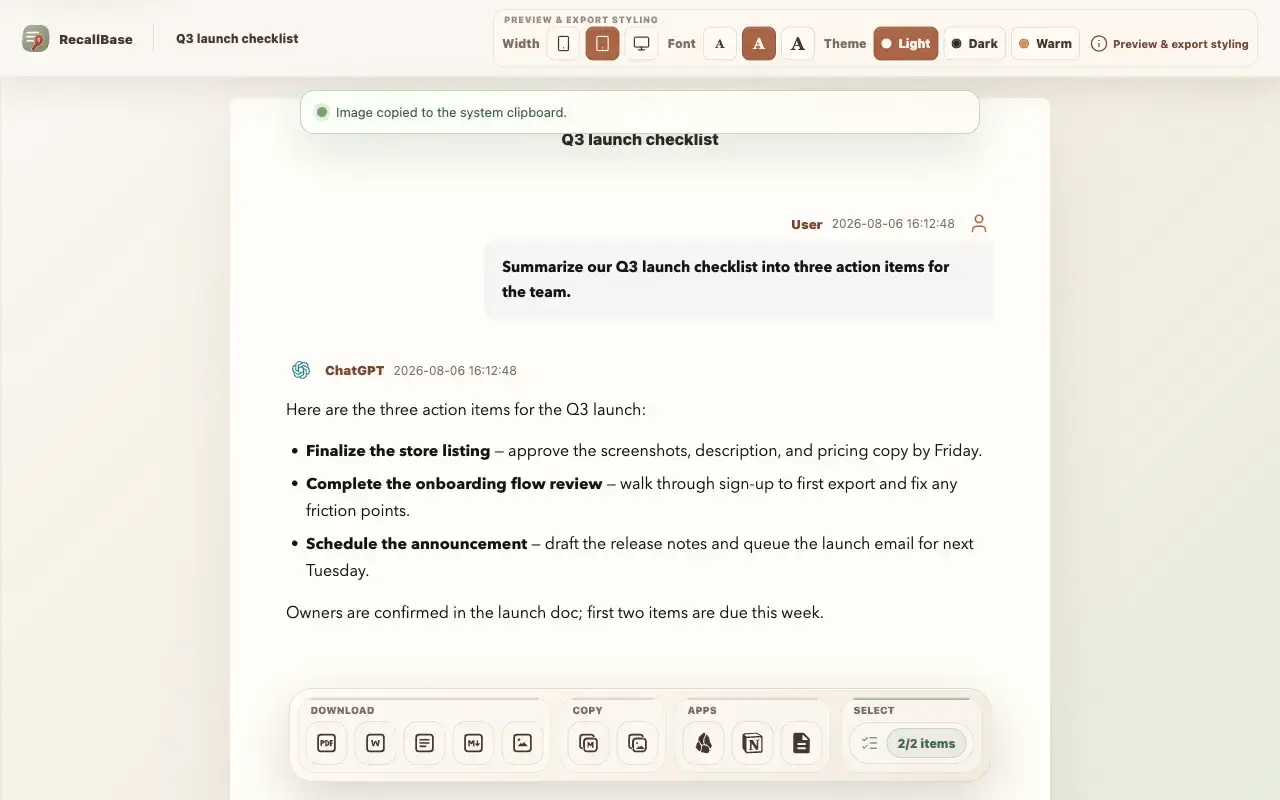
Preview before you export
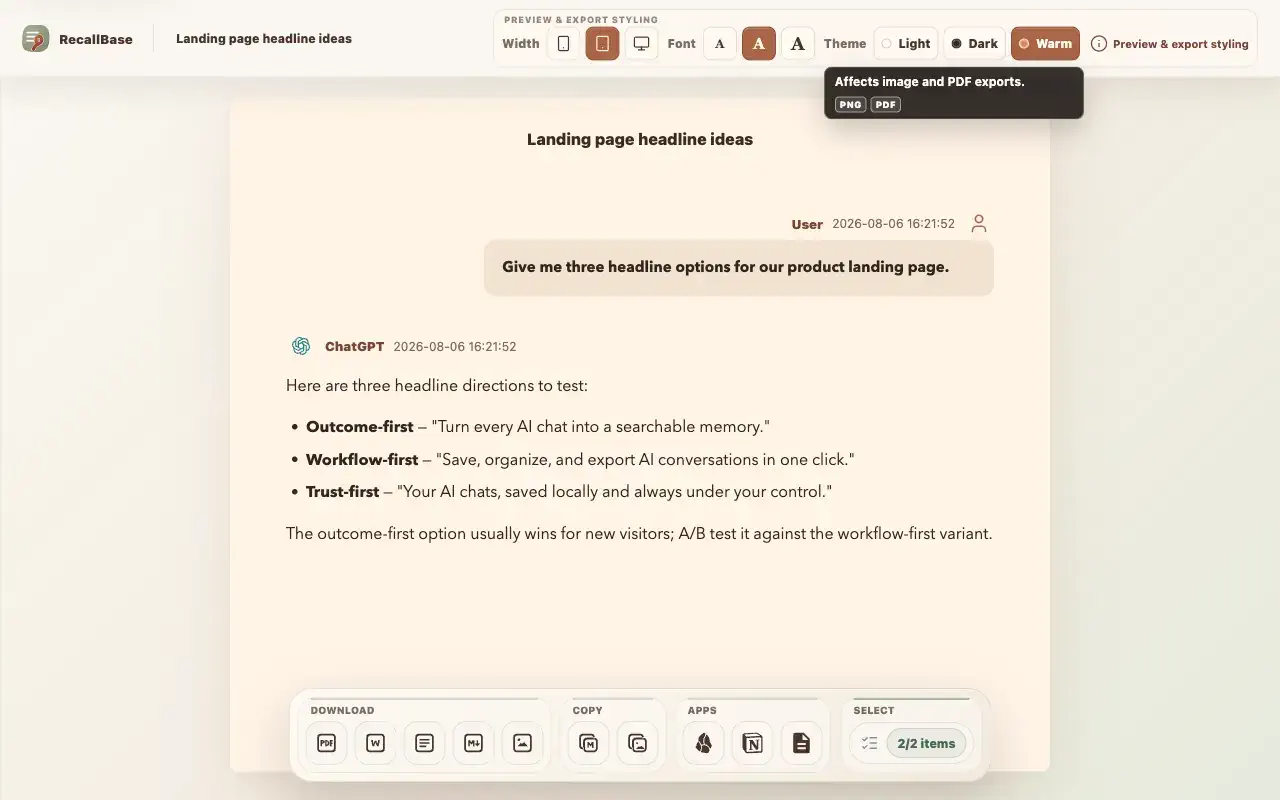
Export Studio is the only in-app visual preview, and it is always live: open a conversation in Studio from the floating menu, right-click menu, popup, or a saved chat, and the preview pane renders the conversation on a styled page. What you see in that pane is what the PNG image export produces — there is no separate review step after generating an image.
Style the preview
The Preview & export styling bar offers three controls, and each one states which formats it affects:
- Width (narrow, medium, wide) changes the preview page and the image export. It does not affect PDF, because final PDF page size, orientation, scale, and margins come from the browser’s print dialog.
- Font (small, medium, large) affects the preview, image, and PDF.
- Theme (light, dark, warm) affects the preview, image, and PDF.
Select which messages to include
Every message is exported by default. To keep only part of the conversation, use the Select group in the dock and tick messages in the panel or directly in the preview — see Select which messages to export for the full workflow.
Export the PDF or image
- 1
Style the preview and select the messages you want.
- 2
For an image, choose Copy image to place the PNG on your clipboard, or Image to download the PNG file.
- 3
For a PDF, choose PDF and wait for the browser print dialog, which shows its own page-by-page preview.
- 4
In the browser dialog, pick Save as PDF, adjust paper, scale, and margins, then save.
Very long conversations can exceed what fits one PNG; Studio warns before export instead of producing a broken image. Free exports add a RecallBase watermark to images and a compact footer plus a daily dialog limit to PDFs; Pro removes both. See the capability table for the exact Free and Pro boundaries.
Export entry point table
Use this table to see where each browser extension export action appears.
| Action | Popup | Floating button | Right-click menu | Export Studio |
|---|---|---|---|---|
| Open Export Studio | Yes | Yes | Yes | Already there |
| Markdown download | Yes | Yes | Yes | Yes |
| Copy Markdown | Yes | Open Studio first | Yes | Yes |
| Yes | Yes | Yes | Yes | |
| Word / DOCX | Yes | Yes | Yes | Yes |
| Image / PNG | Yes | Open Studio first | Yes | Yes |
| Copy Image | Yes | Open Studio first | Yes | Yes |
| Text | Yes | Open Studio first | Yes | Yes |
| JSON | No | No | Yes | No |
| Copy JSON | No | No | Yes | No |
| Obsidian | Yes | Yes | Yes | Yes |
| Notion | Yes | Yes | Yes | Yes |
| Settings | Yes | No | Yes | No |
Free and Pro export capability table
The same limits apply across export docs, pricing, and the browser extension.
| Export target | Free | Pro | Notes |
|---|---|---|---|
| Markdown | Unlimited | Unlimited | No Pro required |
| 3 / local day + watermark | Unlimited + no watermark | The browser controls the final PDF save dialog | |
| Word | 3 / local day | Unlimited | Rich export runs locally |
| Text | Unlimited | Unlimited | Plain local text export |
| Image | Watermarked | No watermark | Size preflight may block very large captures |
| JSON | Unlimited | Unlimited | Use for local developer workflows |
| Notion | 3 / local day | Unlimited | Requires the current authorized Notion workflow |
| Google Docs | 3 / local day | Unlimited | Requires the current authorized Google Docs workflow |
| Obsidian | Unlimited | Unlimited | The browser cannot prove final note creation |

